
Media
Use for movies and shows you want to watch later. Mongee extracts the title, year, rating, and streaming context.
Guides
Category guide
What each category is for and when General is still the right fallback.
Capture and sharing
How to share into Mongee, choose a collection, and wait briefly for AI processing on iOS and Android.
Sorting
How Mongee orders a collection by the detail that matters most right now.
Grouping
How Mongee splits items into readable buckets instead of one long list.
Mixed collections
How collections stay usable even when they contain more than one category.
Reclassify
How to force Mongee down the right category path when it guessed wrong.
Edit
How manual fixes sit on top of the current AI result without replacing it.
Collection icons
How Mongee suggests icons from the collection name to speed up scanning.
Media Region
Why streaming providers change by country and how Mongee keeps provider results region-aware.
Place Enrichment
How Mongee adds extra official place context beyond what the screenshot showed on its own.
Category guide
Mongee does not classify content for the sake of labels. Categories exist so the app can extract the right fields, show the right chips, and offer the right sort or group options later.
Use for movies and shows you want to watch later. Mongee extracts the title, year, rating, and streaming context.
Use for places to eat, revisit, or compare. The useful details are cuisine, suburb or city, reviews, and price category.
Use for creator accounts, usernames, or Reddit threads where the person or source is what you want to remember.
Use for products, listings, and things you may buy later. Mongee pulls product name, brand, store, and price when visible.
Use for bills, receipts, notices, forms, or other records where issuer, amount, and dates matter more than browsing context.
Use for study notes, whiteboards, saved reference material, and other knowledge captures you want to search later.
Use for reportorial articles, headline cards, and published reporting where publisher and date are part of the recall value.
Use for conversation threads, negotiations, or service-provider messages where the conversation itself is the artifact.
Use for flights, accommodation, and destination planning. Travel keeps booking and planning details together instead of treating them like Shopping.
Events are public things you can attend. Appointments are private scheduled commitments you need to remember.
Use for visual references, ideas, styling, decor, and mood captures where the look is the thing you want back later.
Job Search is for role cards and hiring pages. General stays as the fallback when an item does not cleanly fit a richer category yet.
Capture and sharing
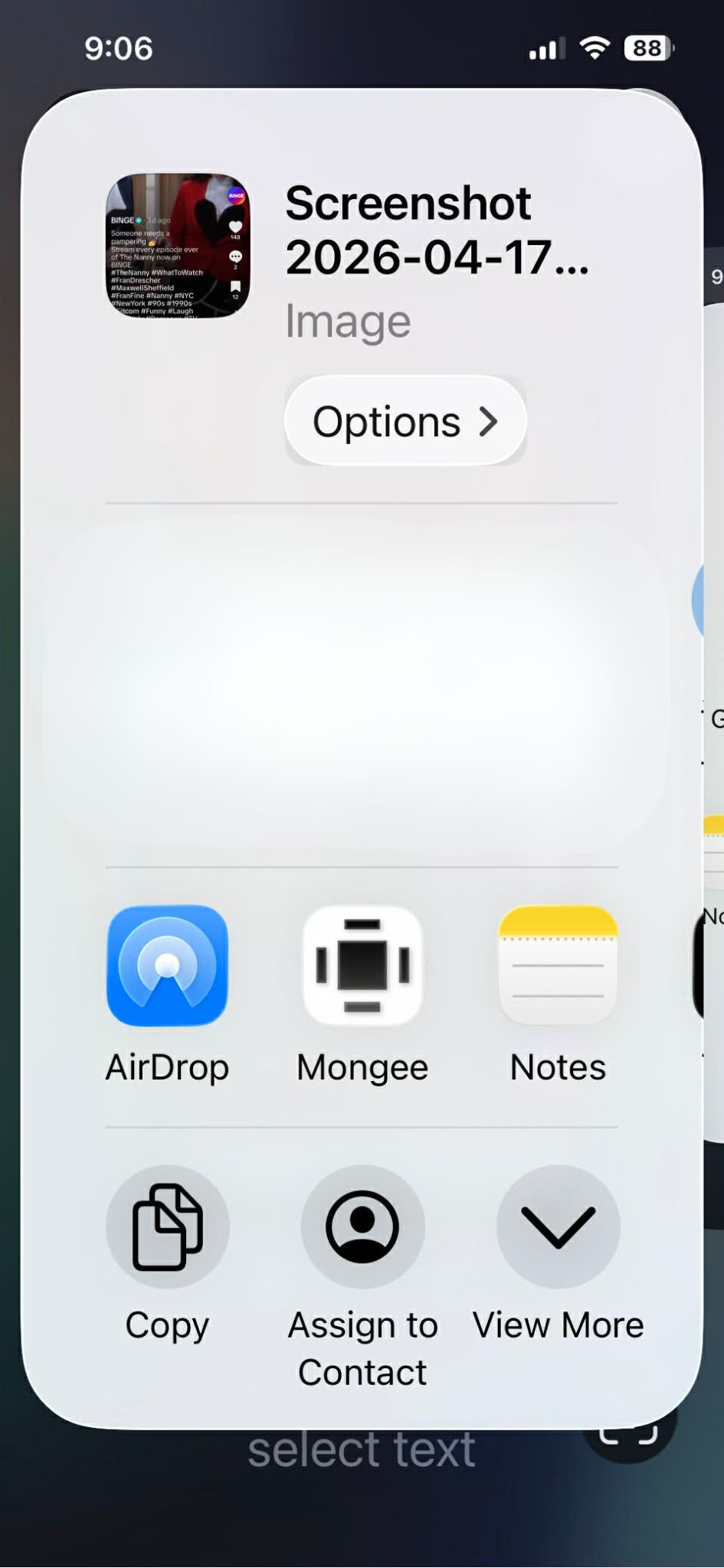
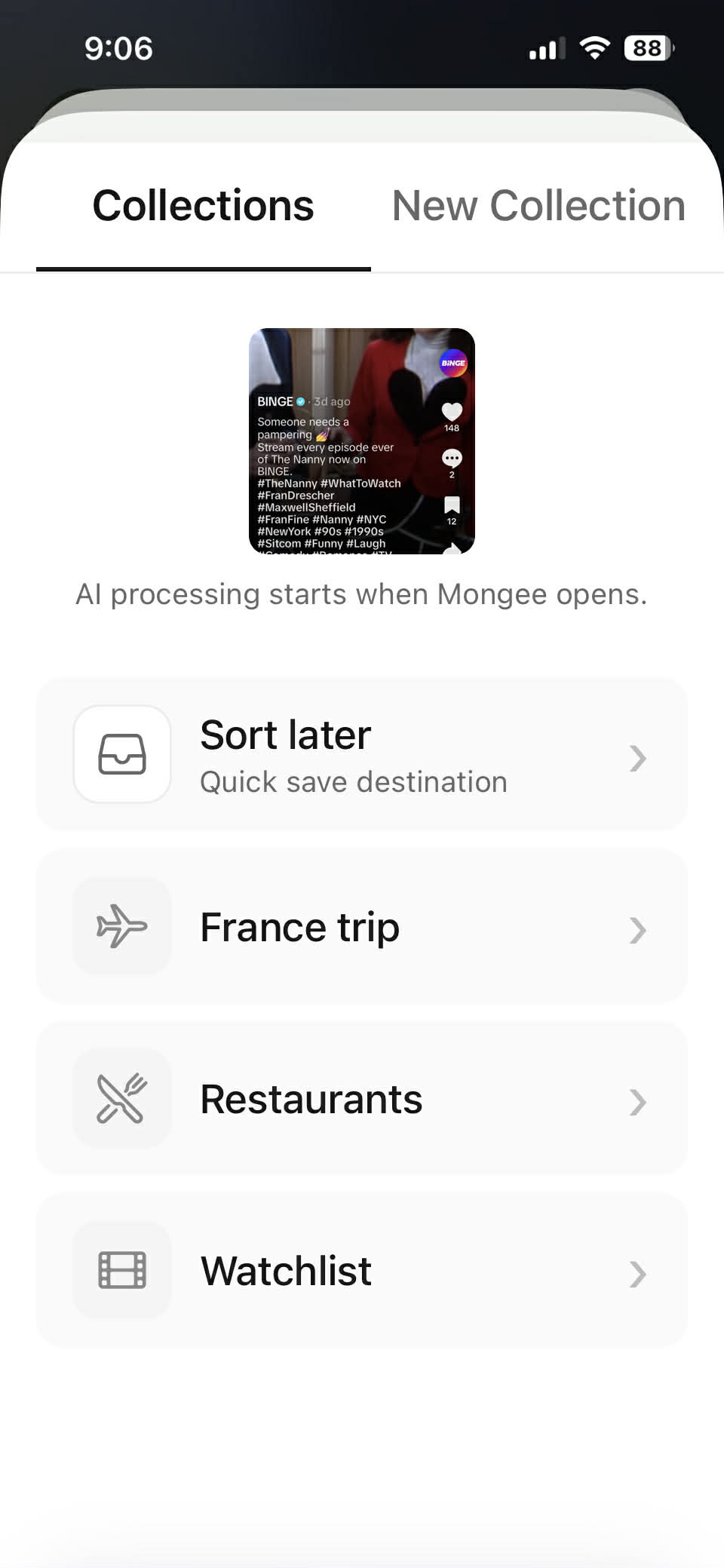
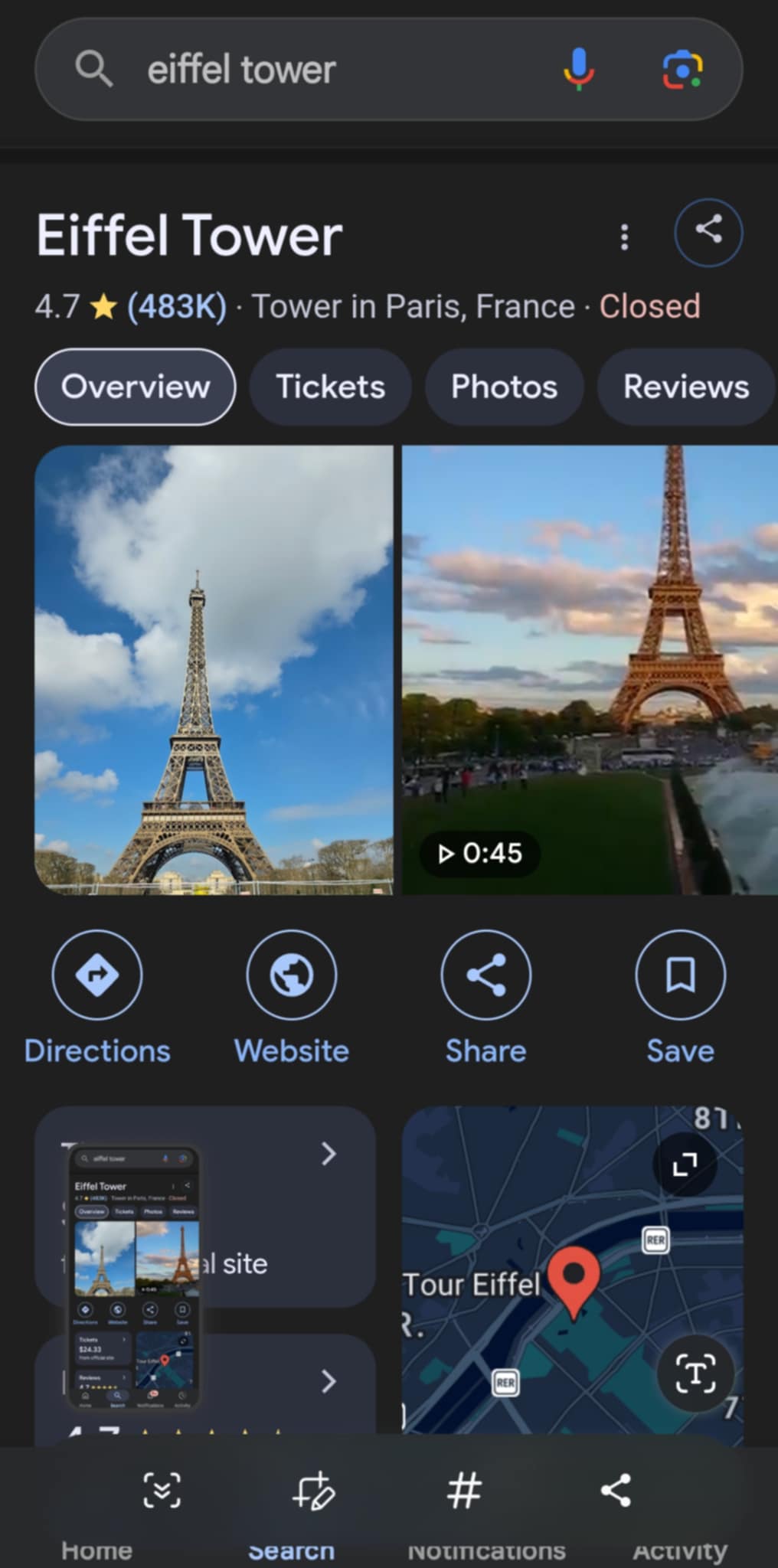
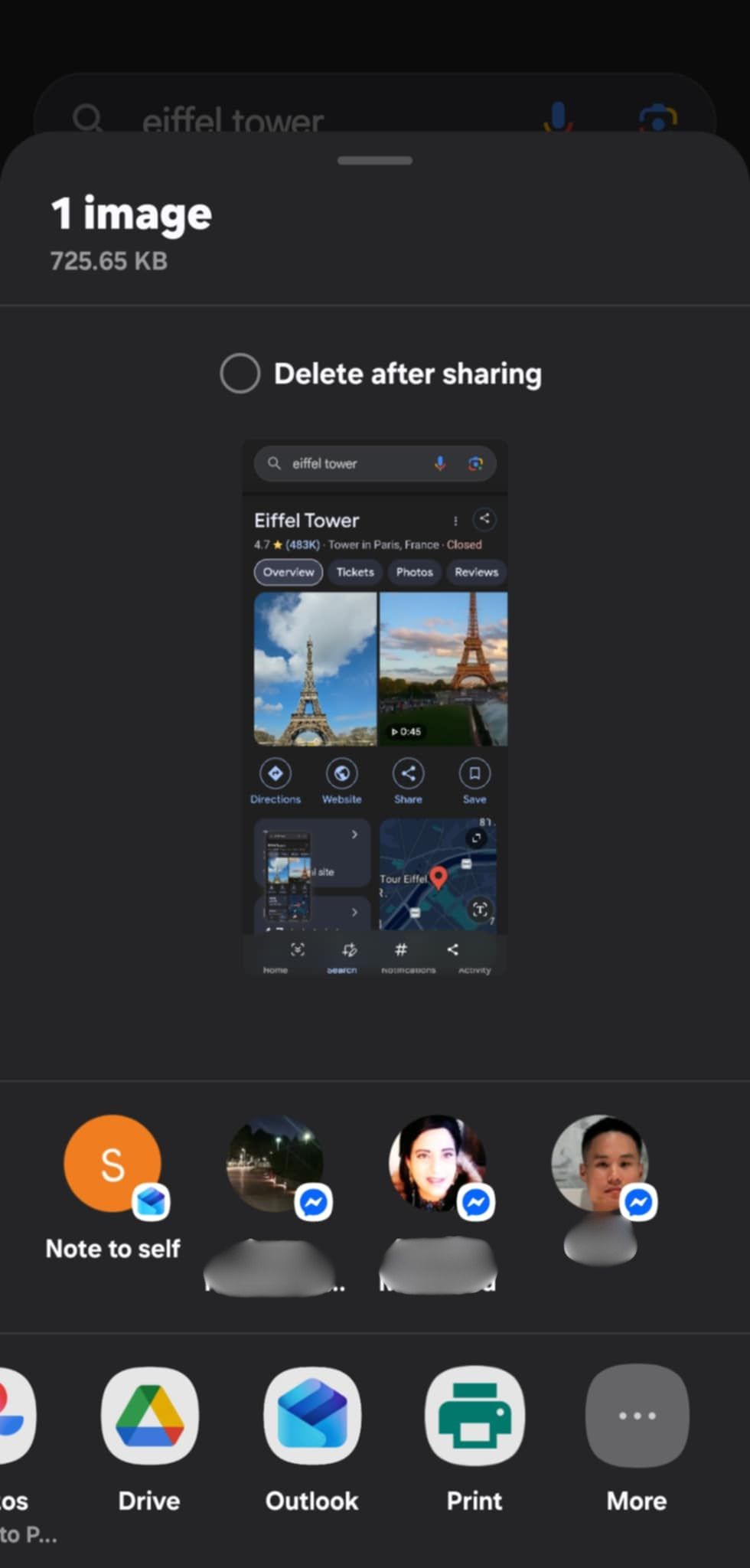
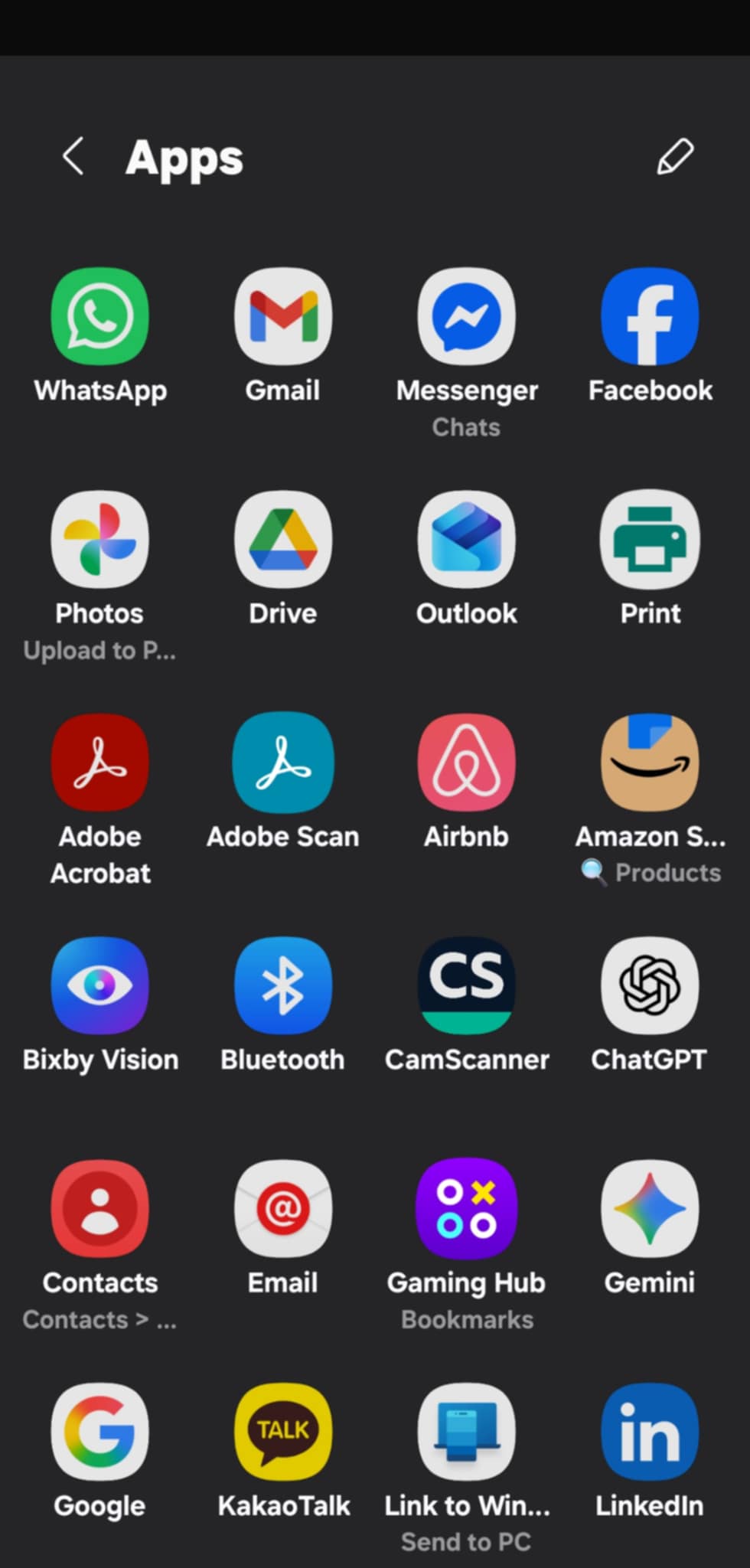
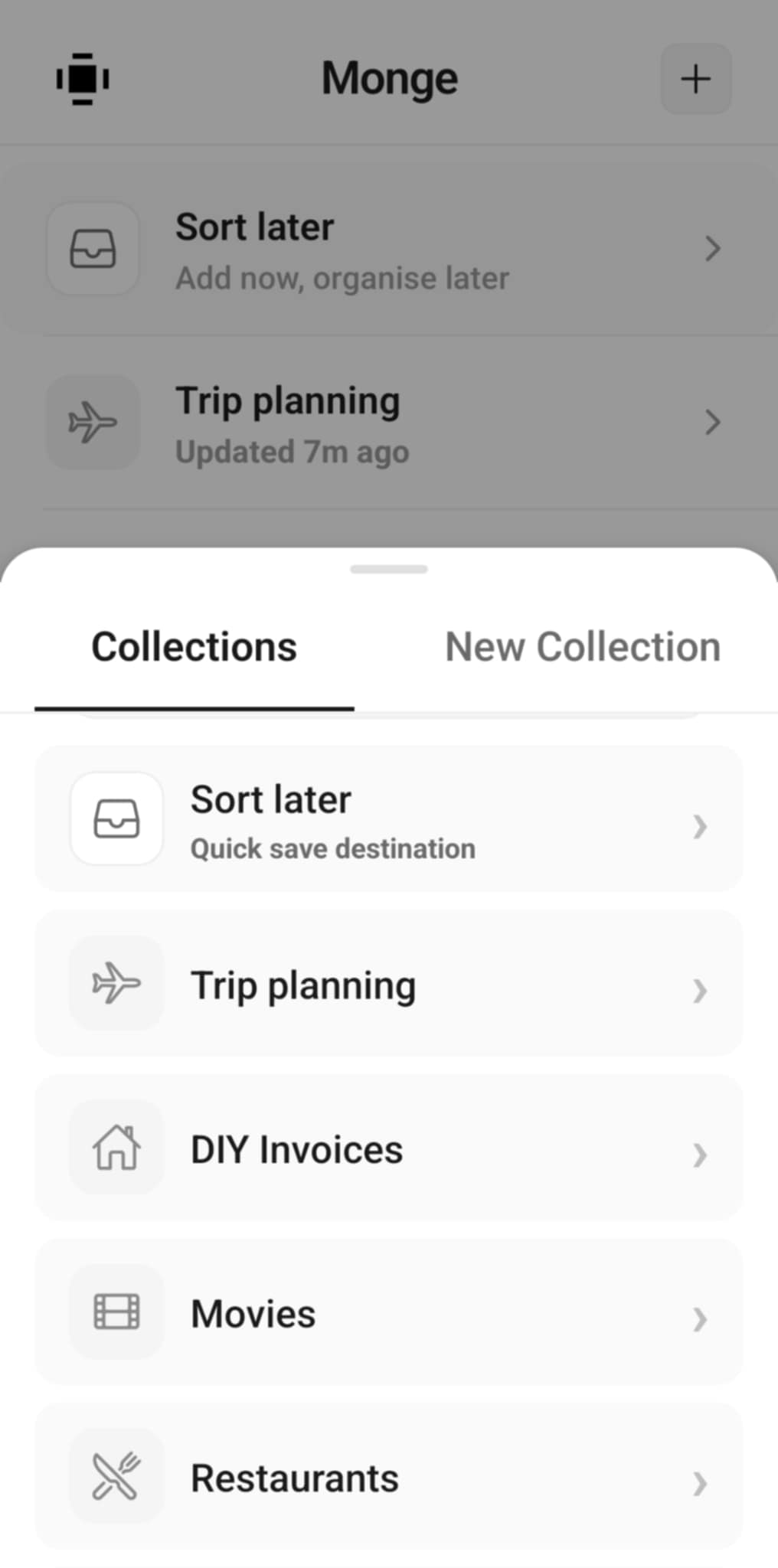
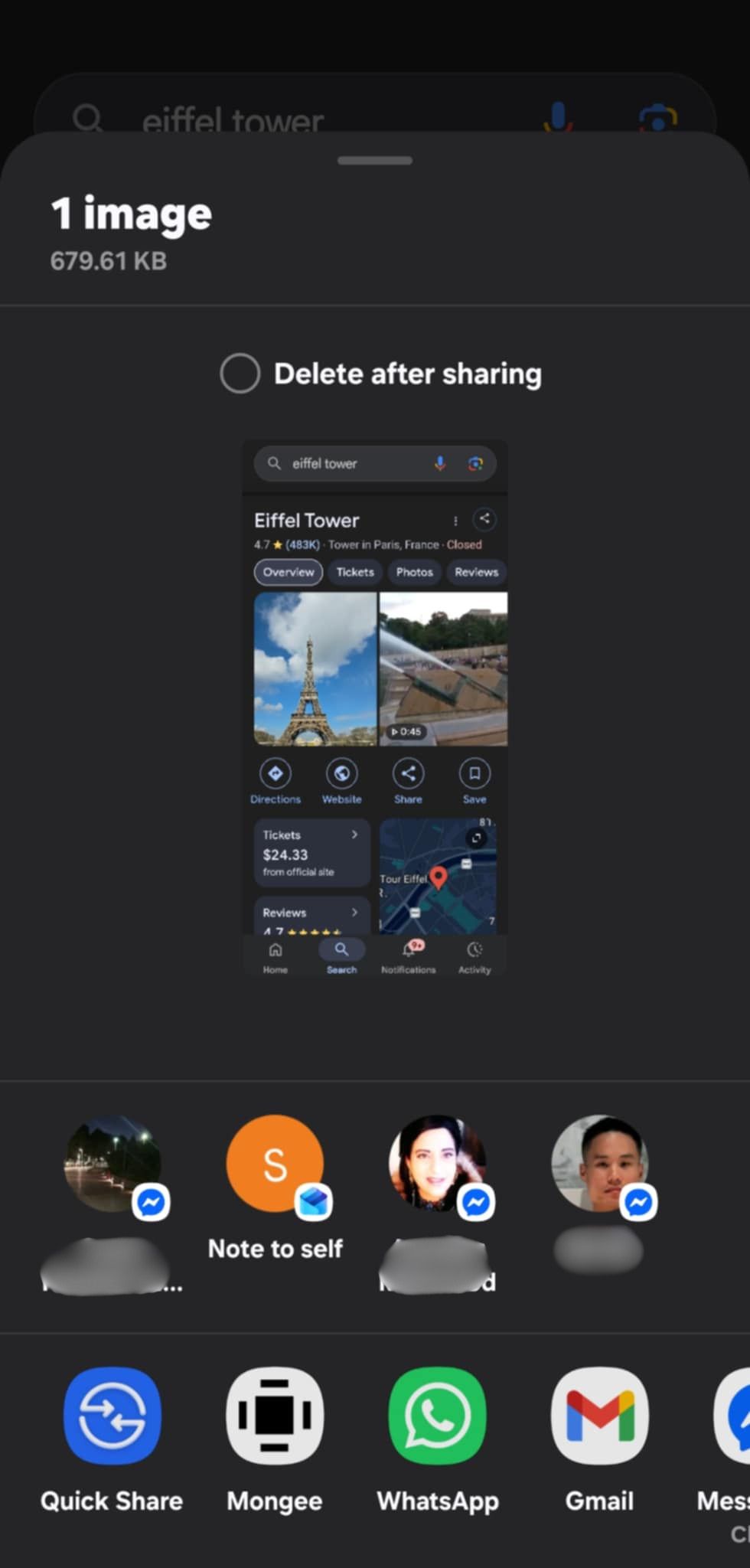
Add Mongee to your phone's share sheet once, and sending a screenshot into a collection can still be quick. The share opens Mongee, where you choose the collection and keep the app open while AI processing completes, usually in a few seconds and sometimes up to 10 seconds.
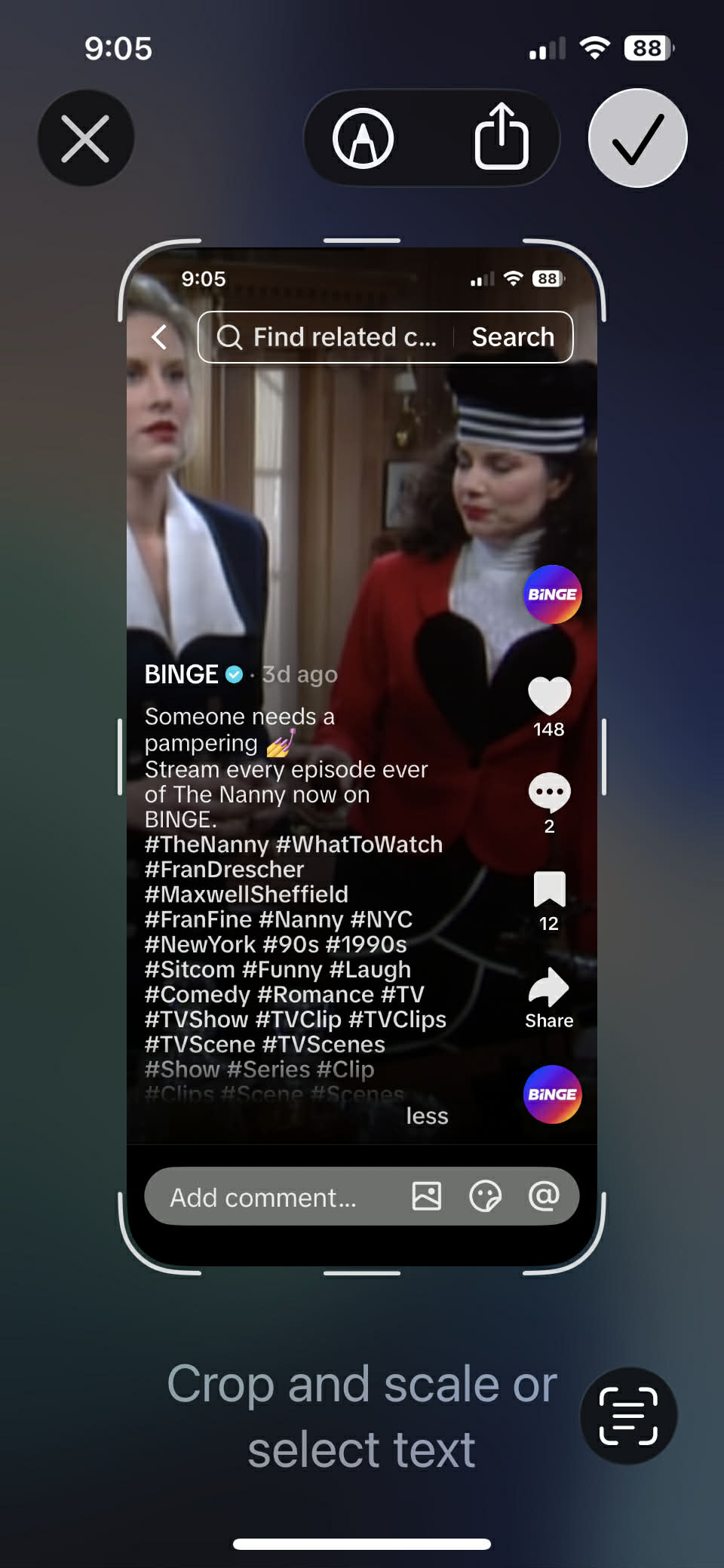
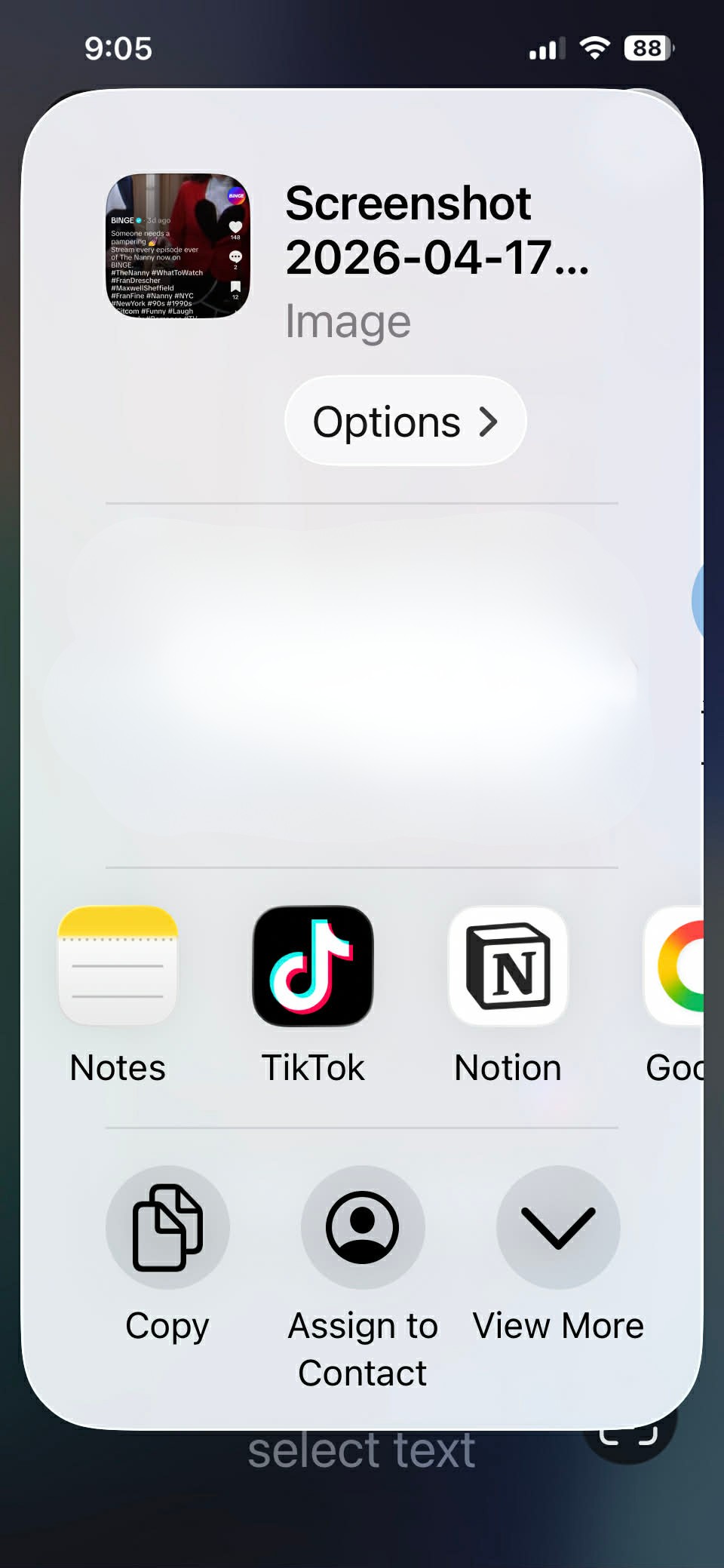
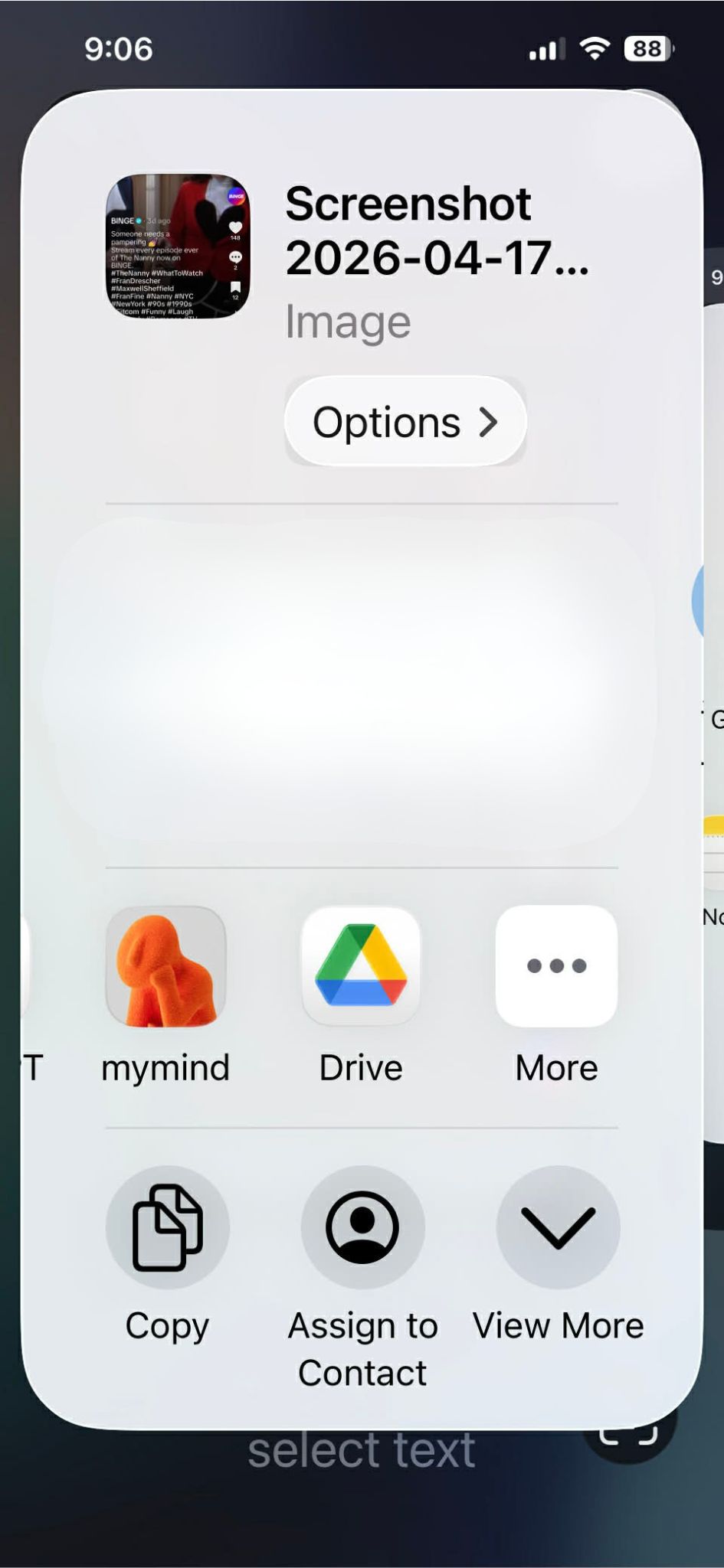
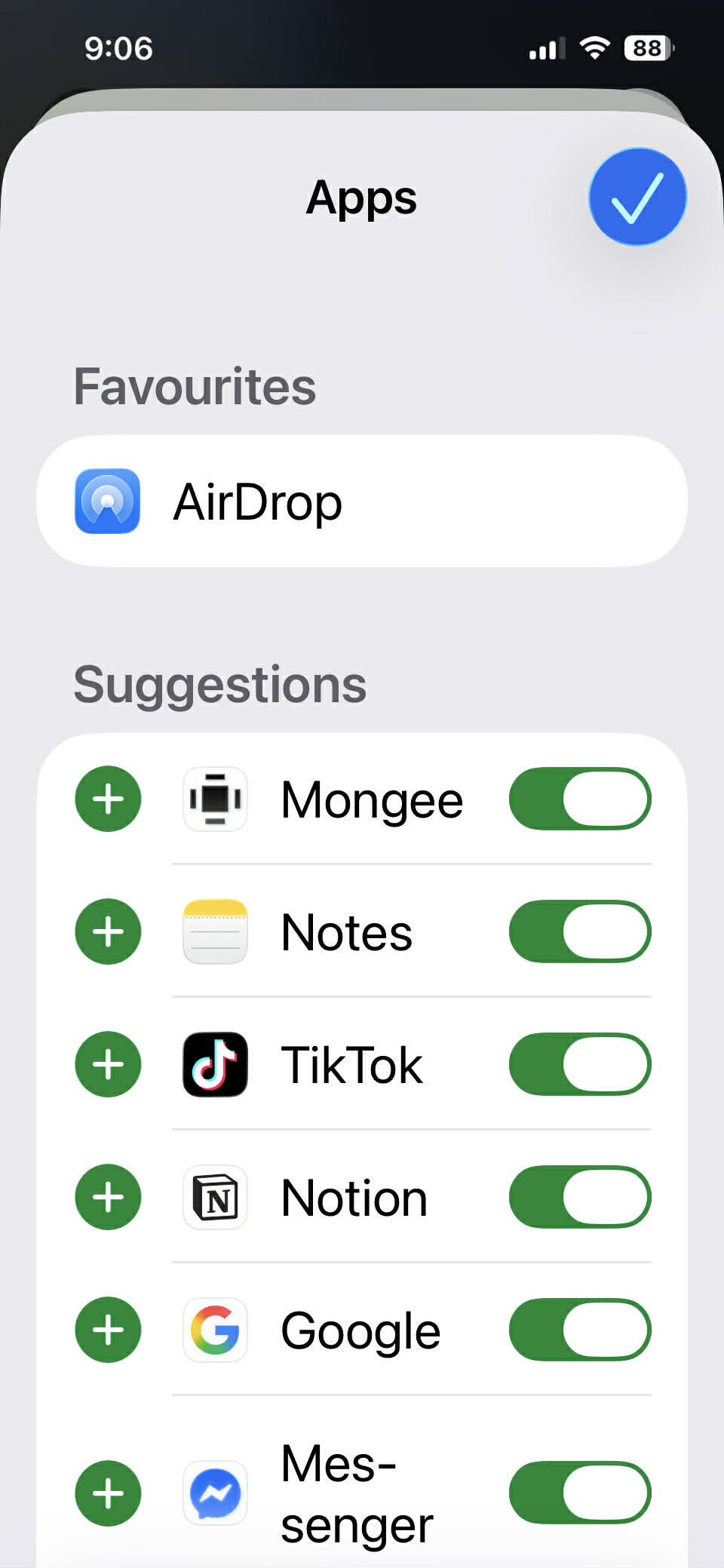
Sorting
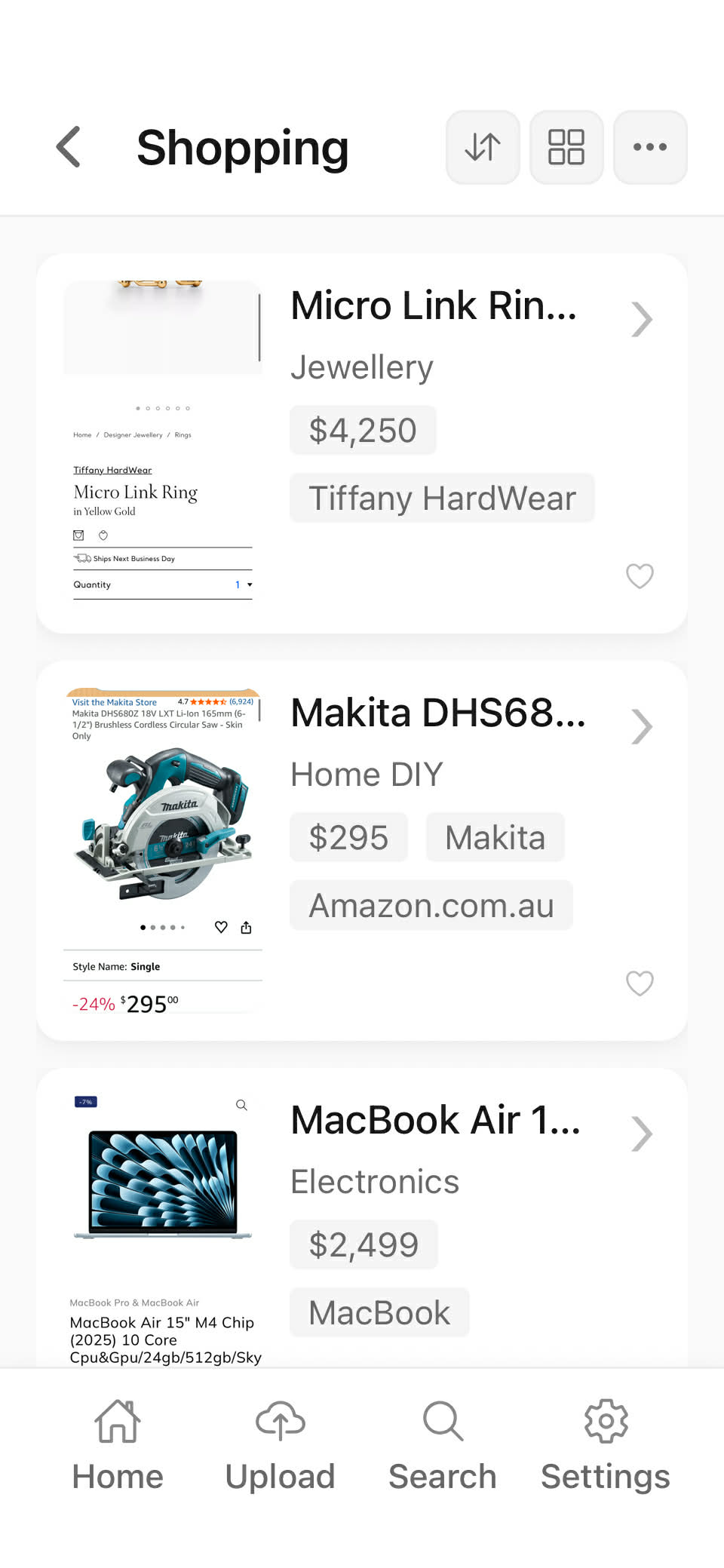
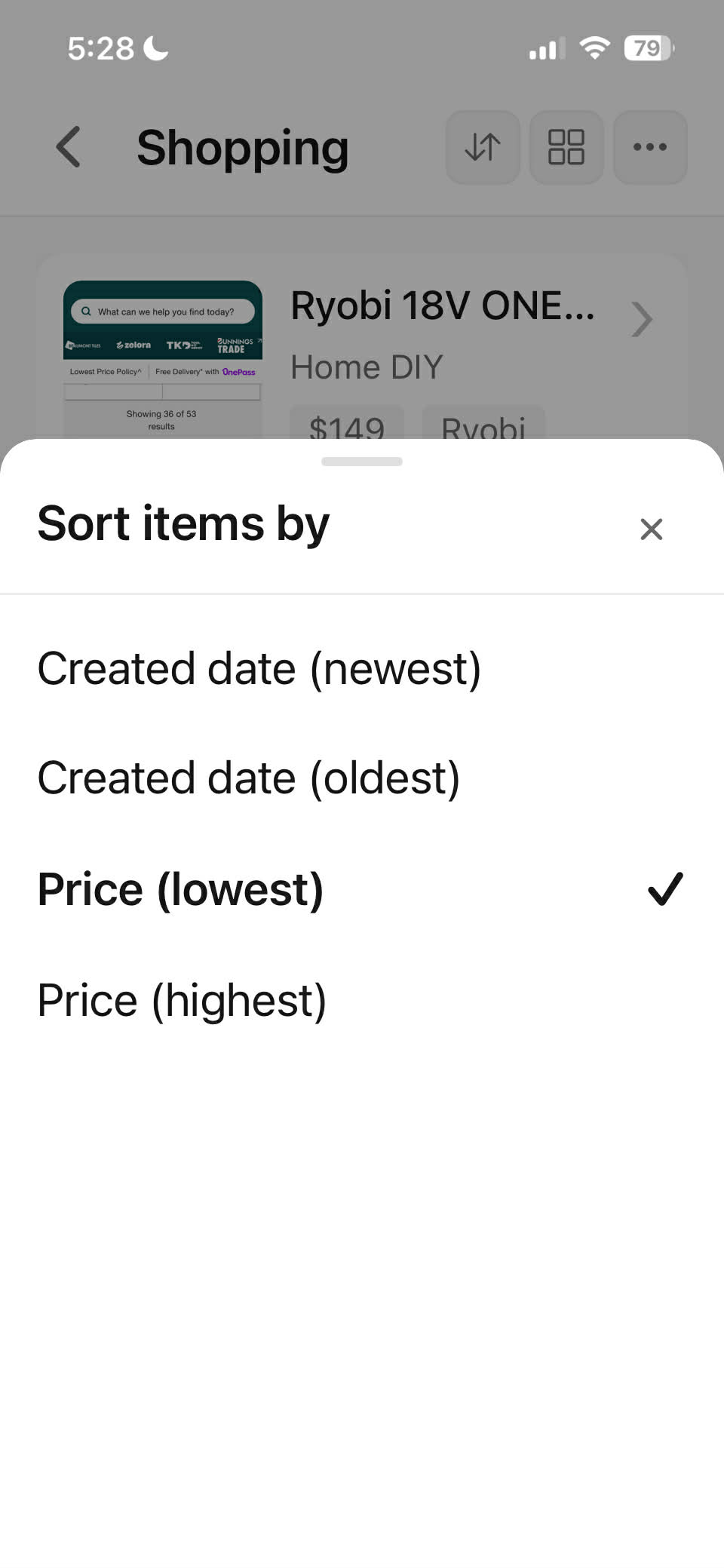
Sorting is about ordering a collection by the detail that matters most right now, such as created date, price, distance, or another field Mongee extracted.
Mongee does not show every possible sort option all the time. Less useful sorts stay hidden until the current collection has enough matching data to make that sort meaningful.
Sorts that make sense across different item types, such as Price or Created date, keep simple names. More category-specific sorts are labeled more clearly so you can still understand them inside broader collections.
When some items do not have the field you are sorting by, Mongee keeps the useful sorted items on top and pushes the unmatched items into a final fallback section instead of mixing everything together.
Example
This example uses Shopping because price is one of the fields Mongee can extract there. When enough saved items include that field, price becomes a useful sort option.
Grouping
For example, for Media (TV Shows or Movies) category screenshots, grouping can turn one long watchlist into readable buckets such as streaming provider, genre, or year, so you can quickly see what is on Netflix, Prime Video, or somewhere else.
Mongee does not show every group option by default. For Media, a grouping such as streaming provider only appears when enough items in the current collection include that provider data to make it useful.
If a movie or show does not have provider data for the selected grouping, it falls into a clear fallback bucket such as No provider instead of disappearing into the wrong place.
Group names stay human. In Media, that means seeing recognisable labels such as Netflix or Prime Video instead of technical field names.
Example
This example uses Media because Mongee can extract provider data from many movie and TV screenshots. Once that data is available, grouping can split the list by where each title is available.
Mixed collections
A collection becomes mixed when it contains more than one category. Mongee still keeps it usable by showing the options that actually fit the items inside it.
Collections do not need to stay single-category. You can keep one project collection that mixes inspiration, shopping, notes, and documents, then still sort and group it in sensible ways.
Mixed collections do not get overloaded with every possible option. Mongee keeps the list focused on the sorts and groups that are actually supported by the items present.
When an option belongs more naturally to one category, Mongee labels it more clearly so the collection still feels readable instead of technical.
Reclassify
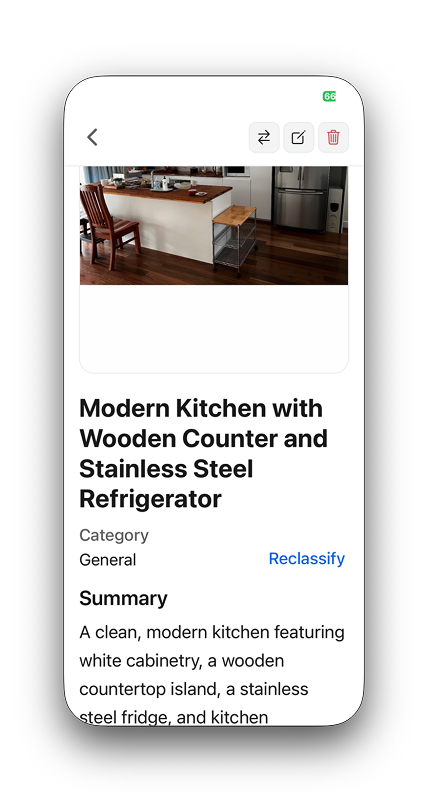
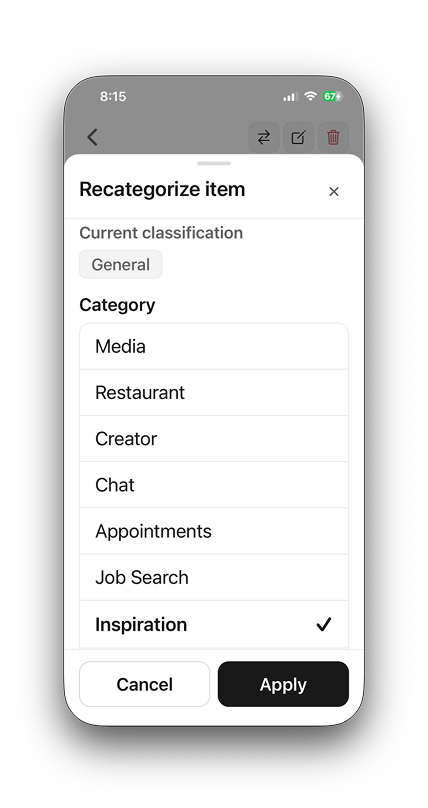
Item Detail exposes a visible Classification section and a Reclassify action. If Mongee chose the wrong category, Reclassify forces the item down a different category path and runs extraction again.
You do not have to guess what category Mongee picked. The current classification is visible in the item detail screen, along with the action to change it.
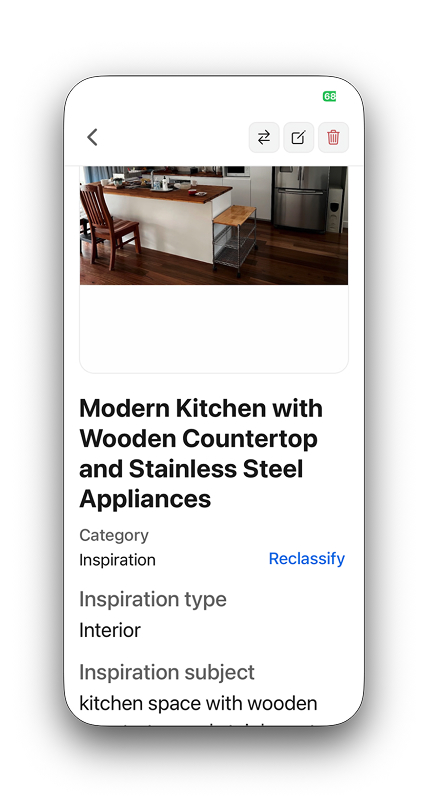
If you move an item from General into Inspiration, Mongee re-runs extraction and shifts the output toward Inspiration fields such as type, subject, and style.
When you reclassify, Mongee keeps only the manual edits that still make sense for the new category. That avoids carrying the wrong field set across categories.
Example
This kitchen screenshot should have landed in Inspiration, not General. Reclassify lets you correct the category in place, rerun extraction, and keep moving without starting the item over.
Edit
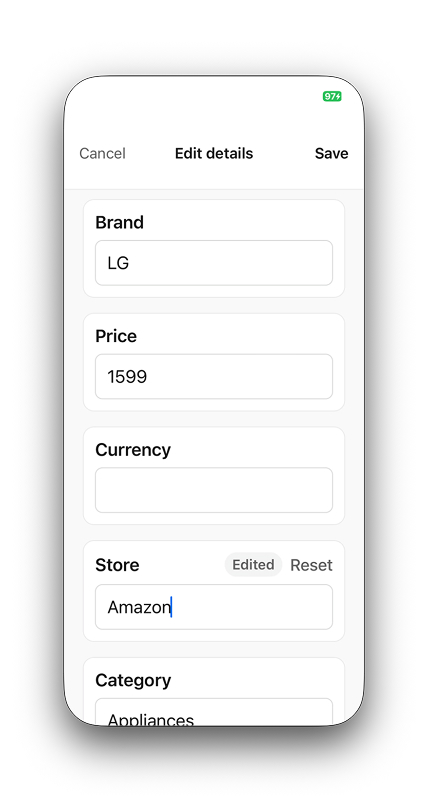
Edit details is for fixing or adding missing fields once the category is already right. That lets you correct the record without replacing the whole item flow.
Edit details stores manual overrides above the current system result. That means you can fix missing or wrong details without losing the latest AI baseline underneath.
If you want Mongee's current value back, reset the specific field instead of wiping the whole item. That makes correction safer and faster.
Use Reclassify when the category is wrong. Use Edit when the category is right but some of the details need a better final answer.
Example
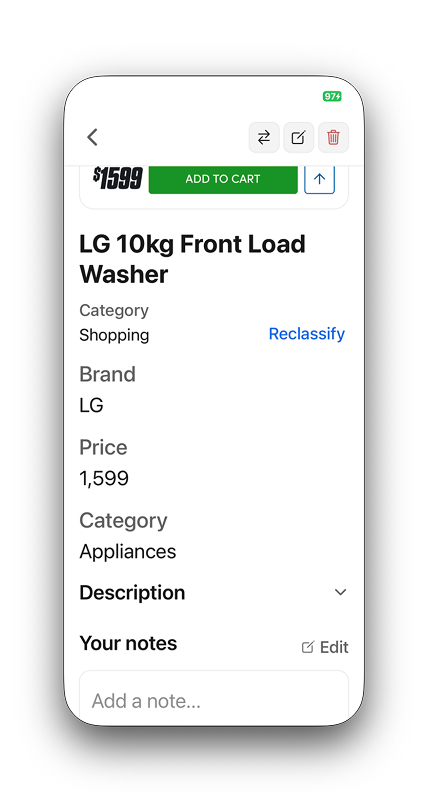
This LG fridge was correctly categorised as Shopping, but the screenshot did not include the store name. That is where Edit helps.
Collection icons
Mongee uses the collection name to suggest a useful icon automatically, so collections are faster to scan without turning setup into extra work.
Mongee uses a shared name-to-icon suggestion rule for collection icons. Names such as Movies, Recipes, or DIY are enough to generate a useful visual cue automatically.
The icon is a quick visual shortcut for browsing your collection list. It helps recognition at a glance without changing what the collection actually contains.
Media Region
Streaming providers vary by country. Mongee uses the selected Media Region to decide which services to show for a title, so the provider list matches the country you care about right now.
The same movie or show can appear on different streaming services depending on the country. Media Region keeps those provider results grounded in one place instead of mixing regions together.
Mongee defaults to the region your app is set up for, so most people do not need to touch anything on day one.
If you are overseas or want provider results for a different country, change the Media Region in settings and Mongee will use that region instead.
Place Enrichment
Place Enrichment is Mongee's name for adding extra place details beyond what is visible in the saved screenshot. For Restaurant, Travel Destination, and Hotel saves, Mongee can look up official place data so names are more exact, locations are clearer, and map previews can appear when available.
Place Enrichment adds extra place details that were not clearly visible in the screenshot itself. That can mean a more exact place name, cleaner location details, and better place context for supported saves.
Screenshots often show only part of the story. You might save a restaurant, hotel, or destination because it looks interesting, but the screenshot may not clearly show the full place details you will want later.
Supported Restaurant, Travel Destination, and Hotel items can become much easier to use later. Mongee can show more exact names, clearer location details, and map-related context that helps you compare, revisit, or navigate to the place.
The save still works. Mongee keeps the screenshot and the details it could read directly from it. The main difference is that some official place details, clearer location fields, or map previews may be missing unless you add the information yourself later.