
Restaurants you wanted to try
Buried in your camera roll. You never went.
Save it. Don’t retype it.
Share a screenshot or link. No need to type out the name, add tags, choose a category or fill in the other details. Mongee reads what’s already there and organises it for you.
Available on iOS and Android

Screenshot from TikTok
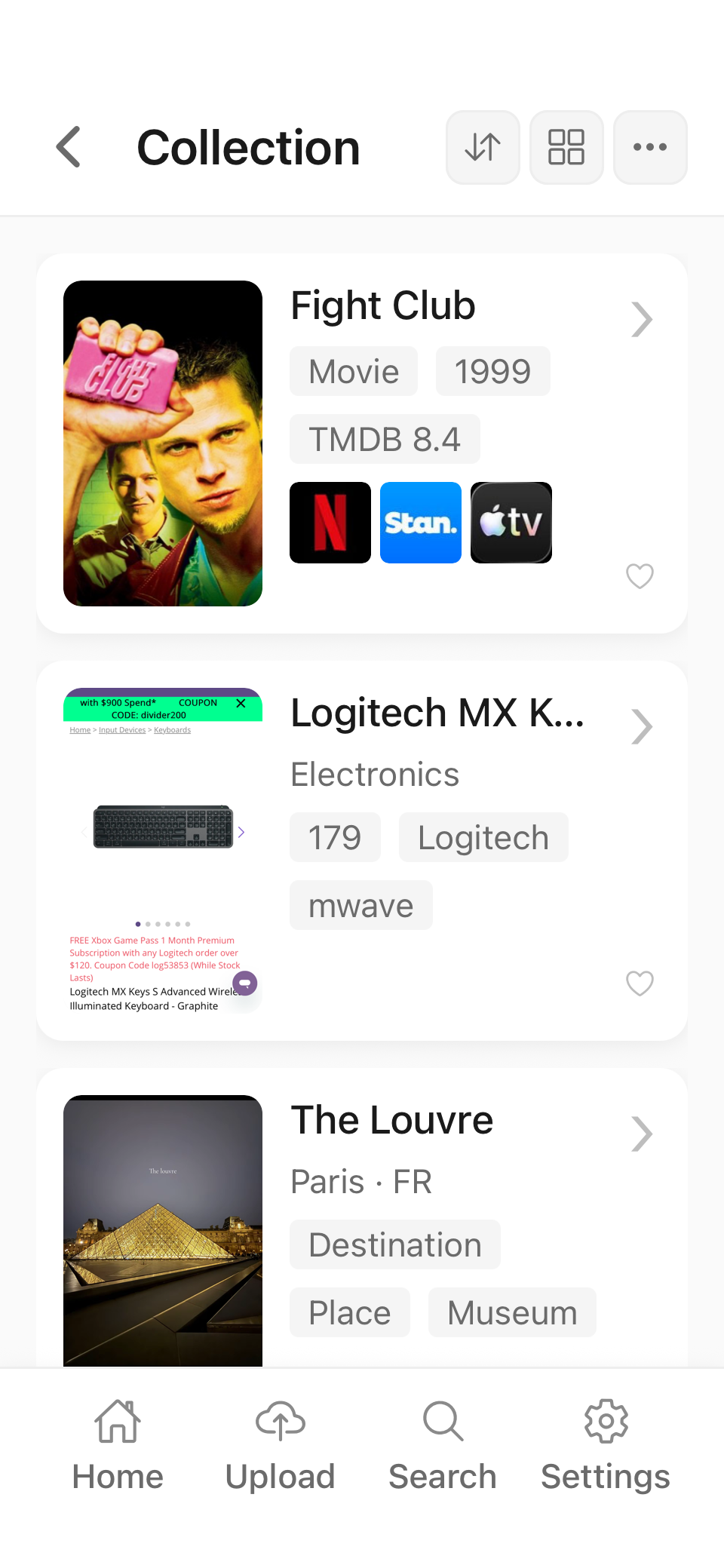
A beautiful list, without typing
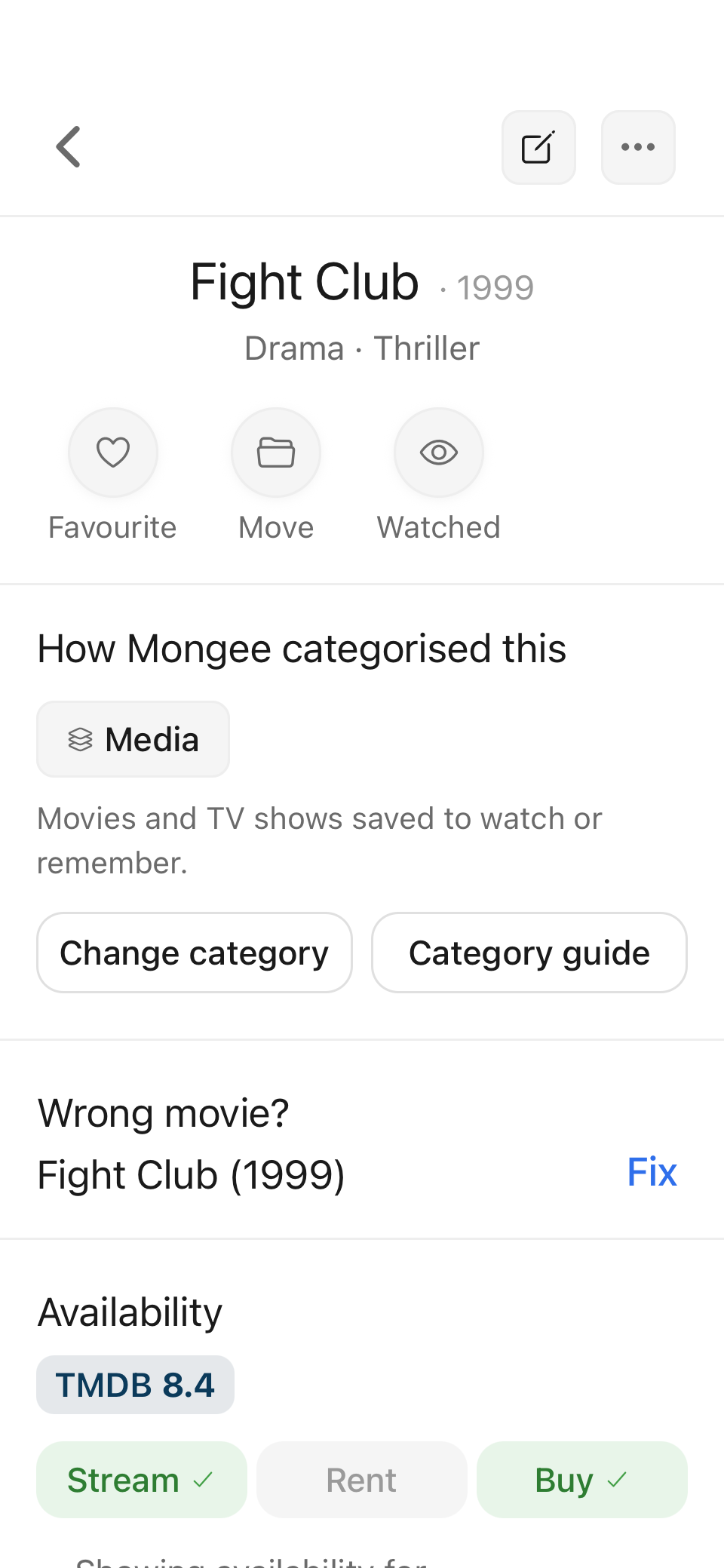
The right details, for you
Sound familiar?
Buried in your camera roll. You never went.
Still on the list. Never booked.
Where is it actually streaming?
Sold out by the time you remembered.
Gone. You bought something worse instead.
Lost somewhere in the scroll.
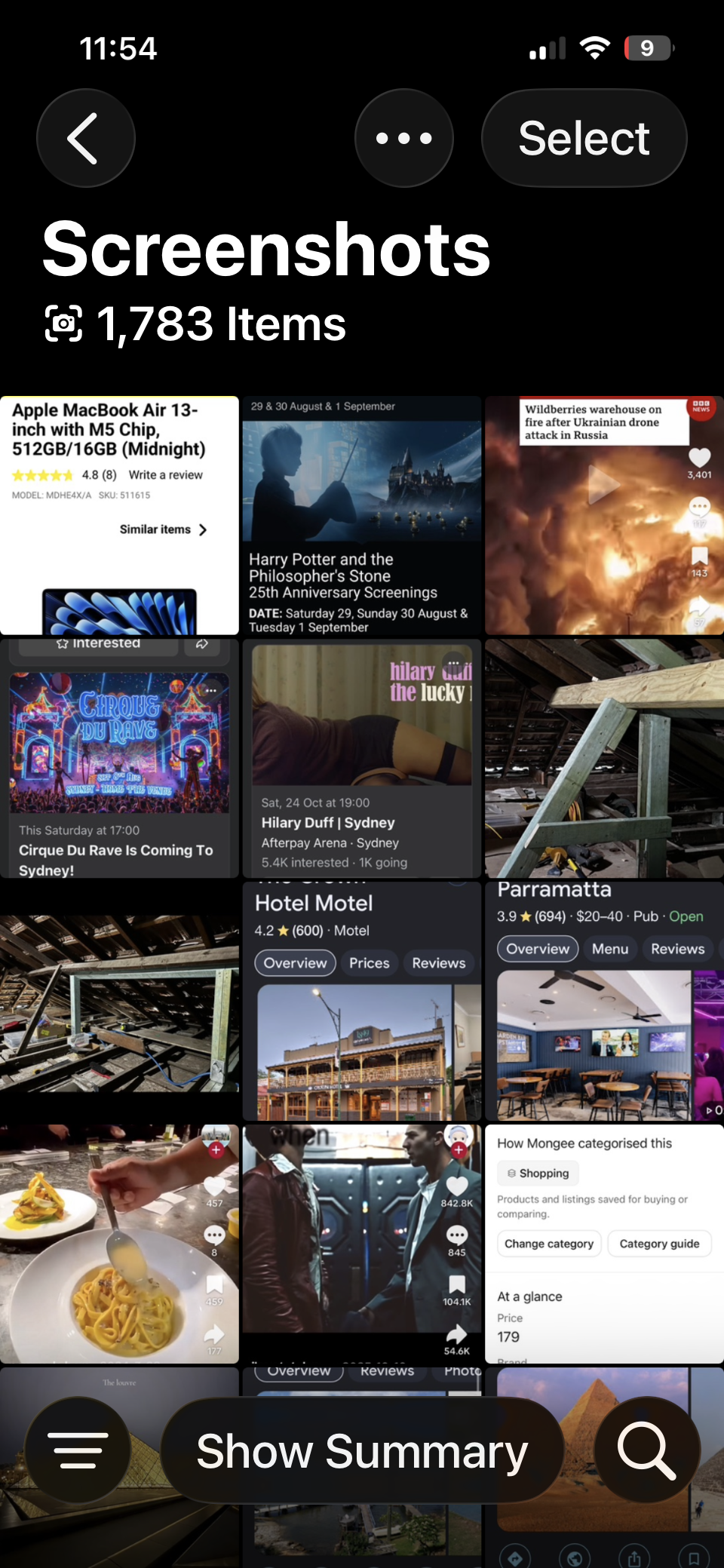
The magic
Click a screenshot to see how it appears in Mongee, which details were added and what you didn’t have to type.
Showing the Restaurant example.
In your collection
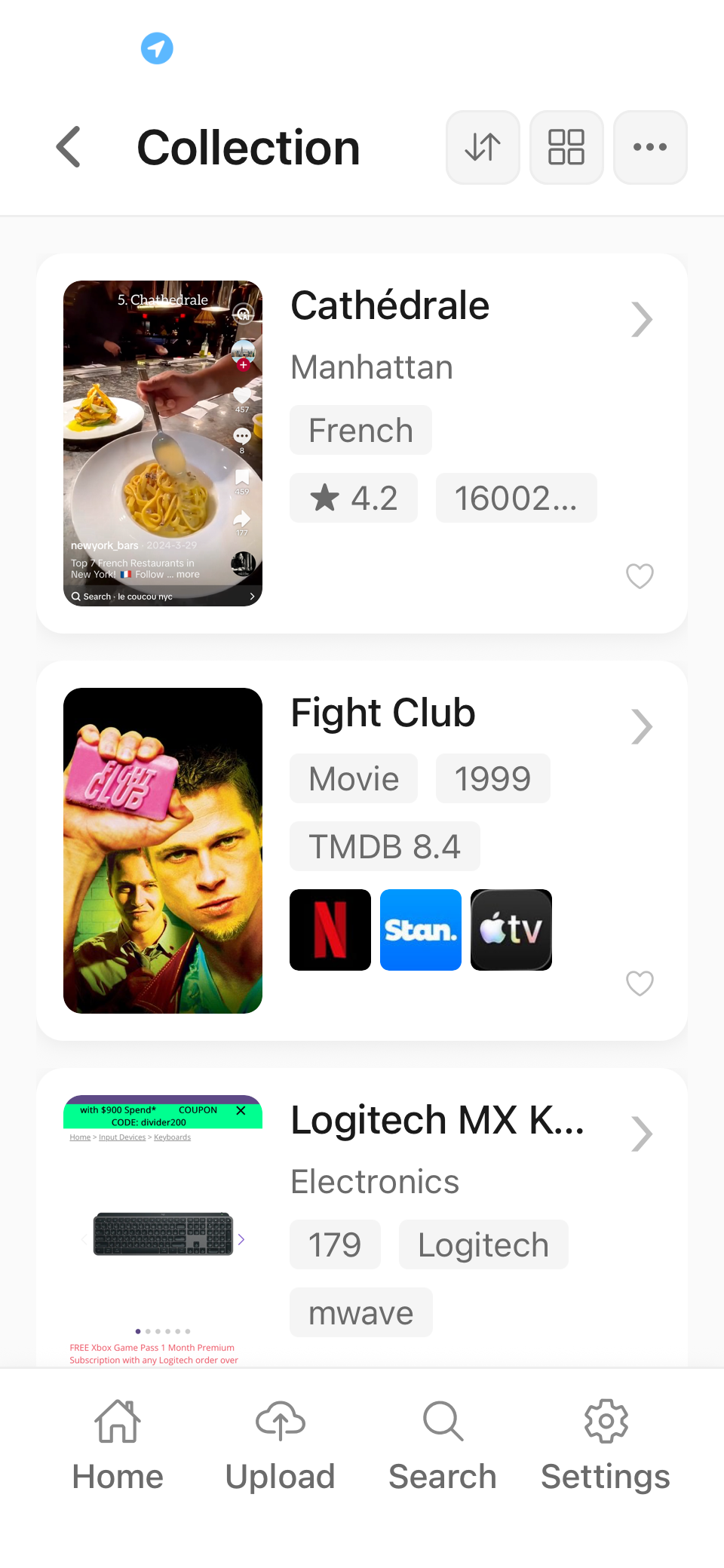
Item details
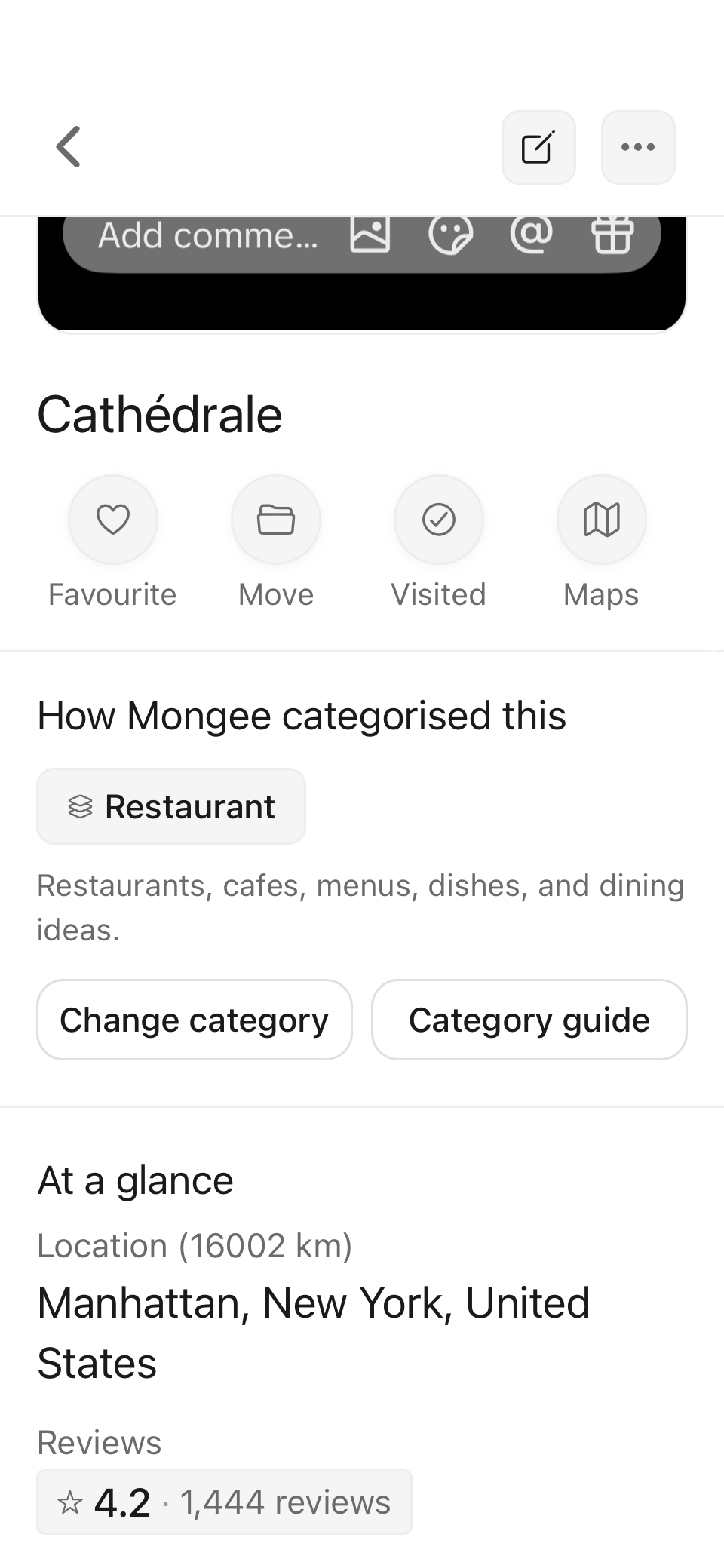
What Mongee did
Sort and group
Use the details already in what you save to see your collections the way you need.
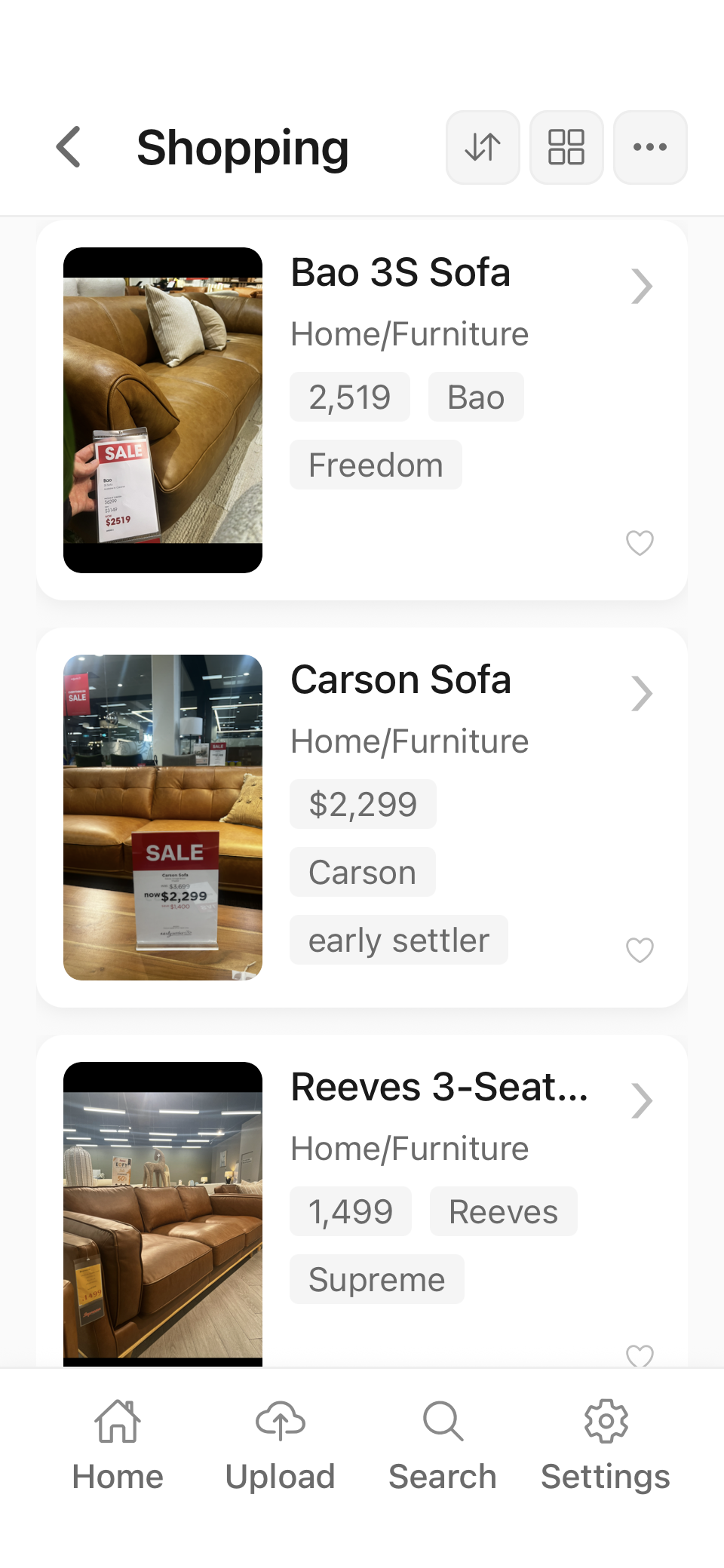
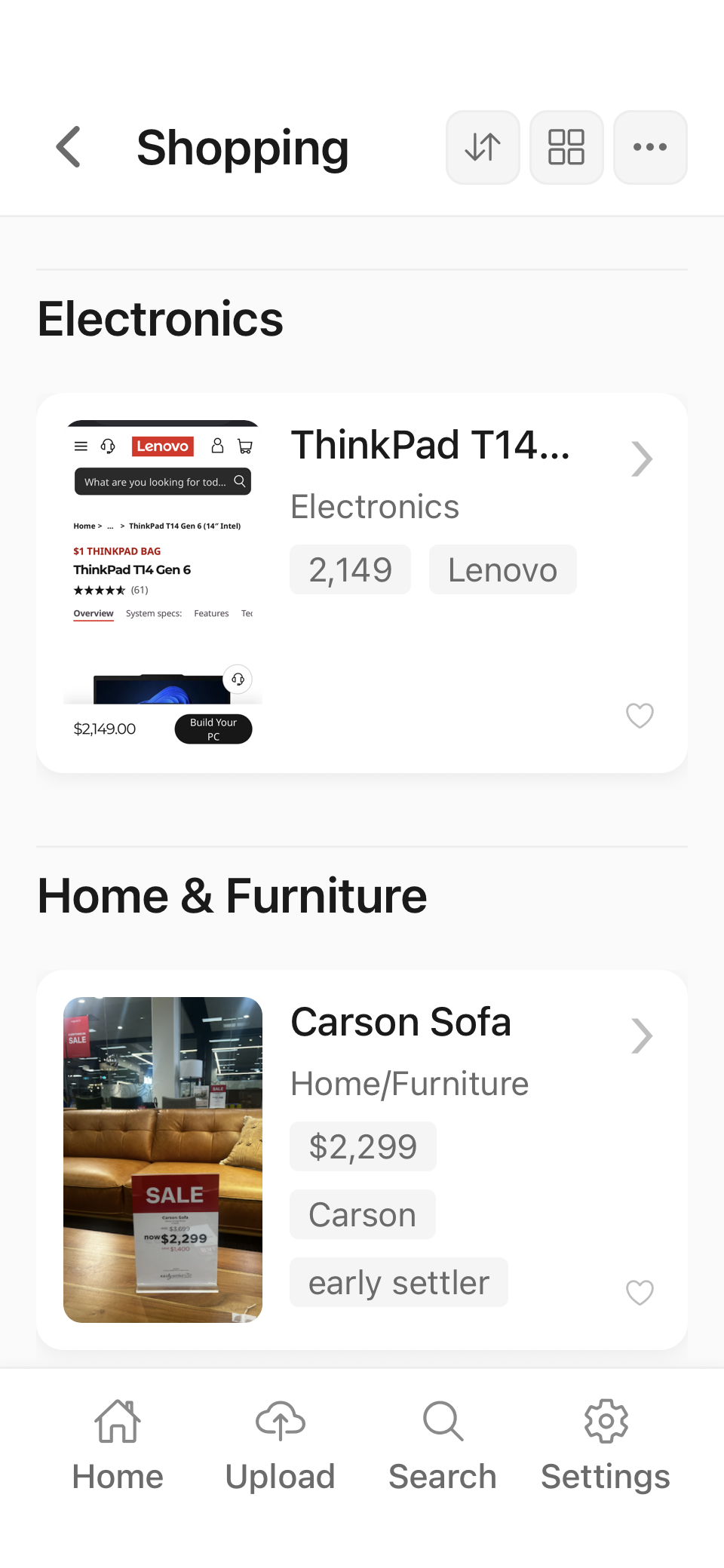
Group similar things
One tap groups the list by product category, putting sofas under Home & Furniture and laptops under Electronics. A mixed shopping list becomes much easier to scan without moving a single item.
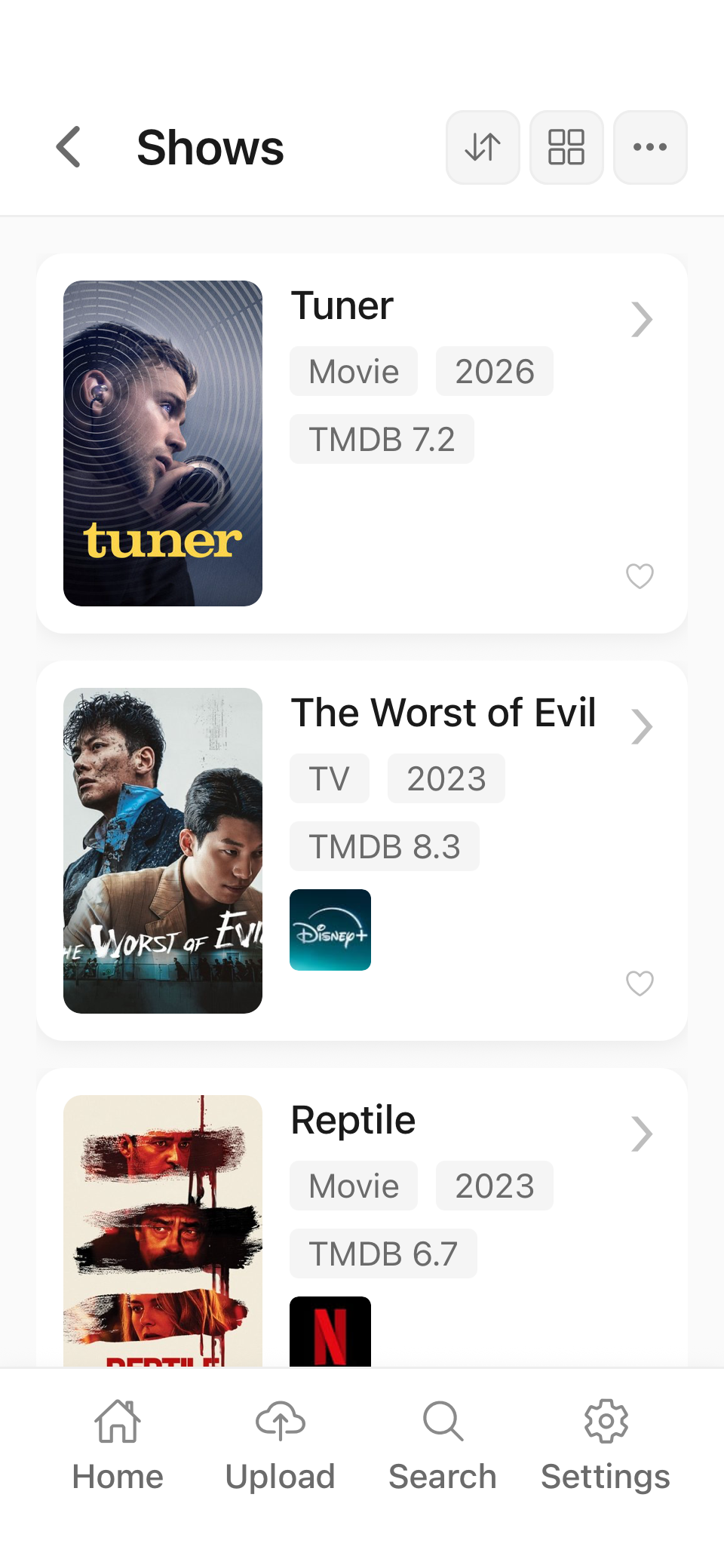
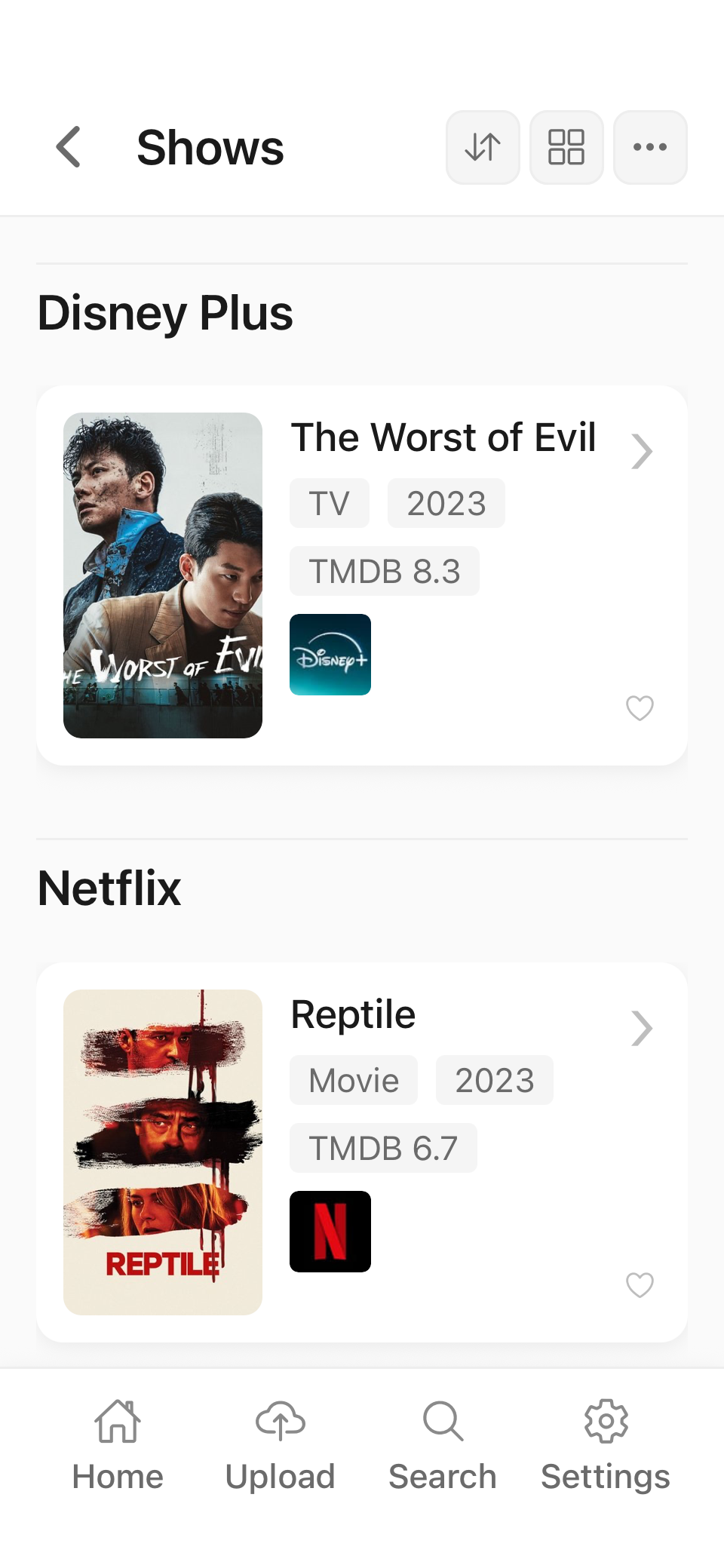
Group by where to watch
One tap groups movies and shows by streaming service. Disney+ and Netflix titles sit together, so you can quickly browse what is available through the subscriptions you already have.
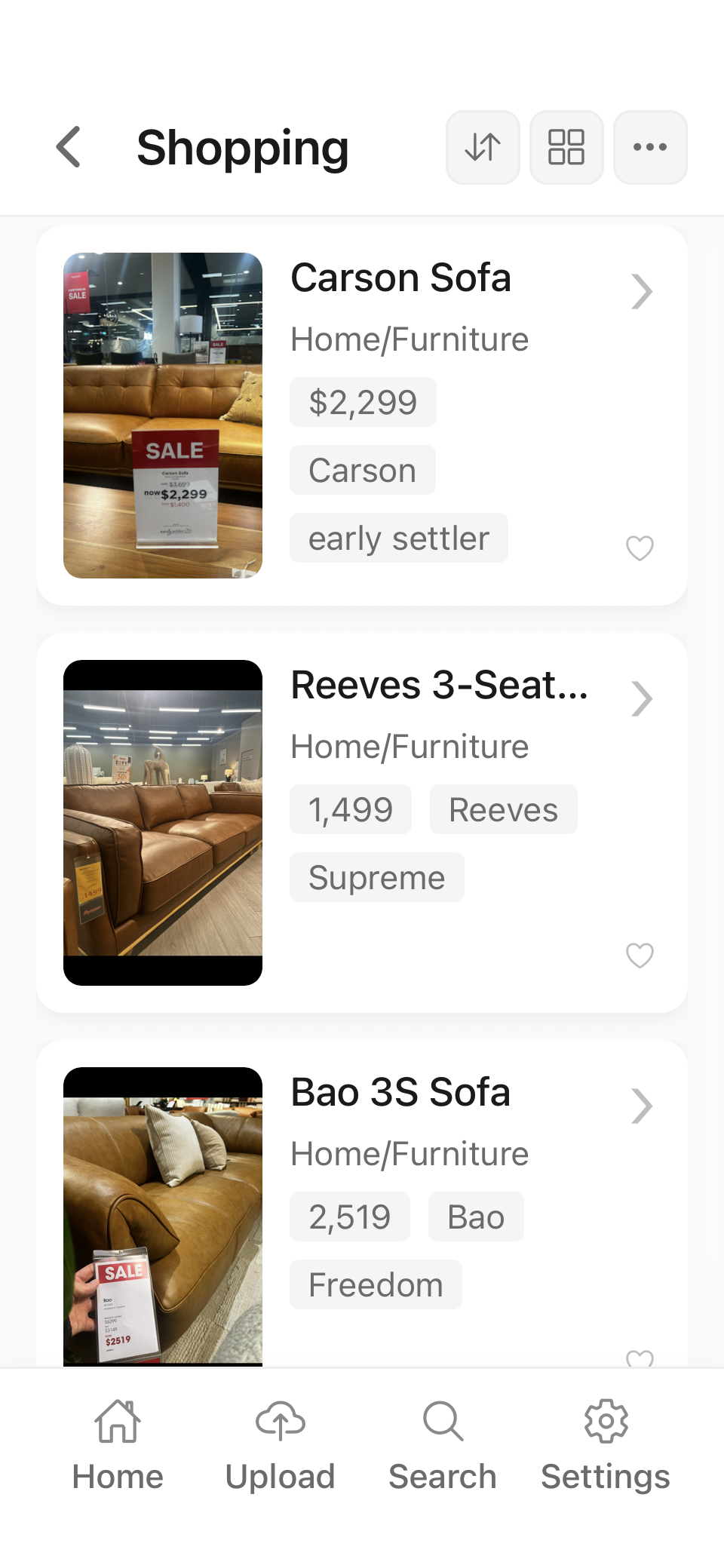
Sort by what matters
One tap sorts the same shopping list by price. Your options fall into order, making it quicker to compare them and find the cheapest choice.
How it works
The information is already in what you save.
Send Mongee a screenshot or link from the app you’re already using.
Pick a collection, or use Sort later when you don’t want to decide yet.
The name, category, tags and relevant details are pulled from what was already there.
Different save, different details
A restaurant needs a location and cuisine. A movie needs a title and somewhere to watch it. An invoice needs an issuer and amount. Mongee doesn’t make every save fit the same form.
Name · location · cuisine · reviews
Title · year · genre · where to watch
Product · brand · price · store
Place · location · destination type
Issuer · date · amount · status
Inspiration, jobs, events, appointments, notes etc
Our product rule
We’re obsessed with reducing how much you have to type. Every name, tag, category and detail you have to enter makes getting organised feel like work.
If Mongee can read, detect or work it out, you shouldn’t have to type it.
You can still add a personal note, rename something or fix a mistake. Mongee just won’t make you re-enter information it can already see.
What if we get it wrong?
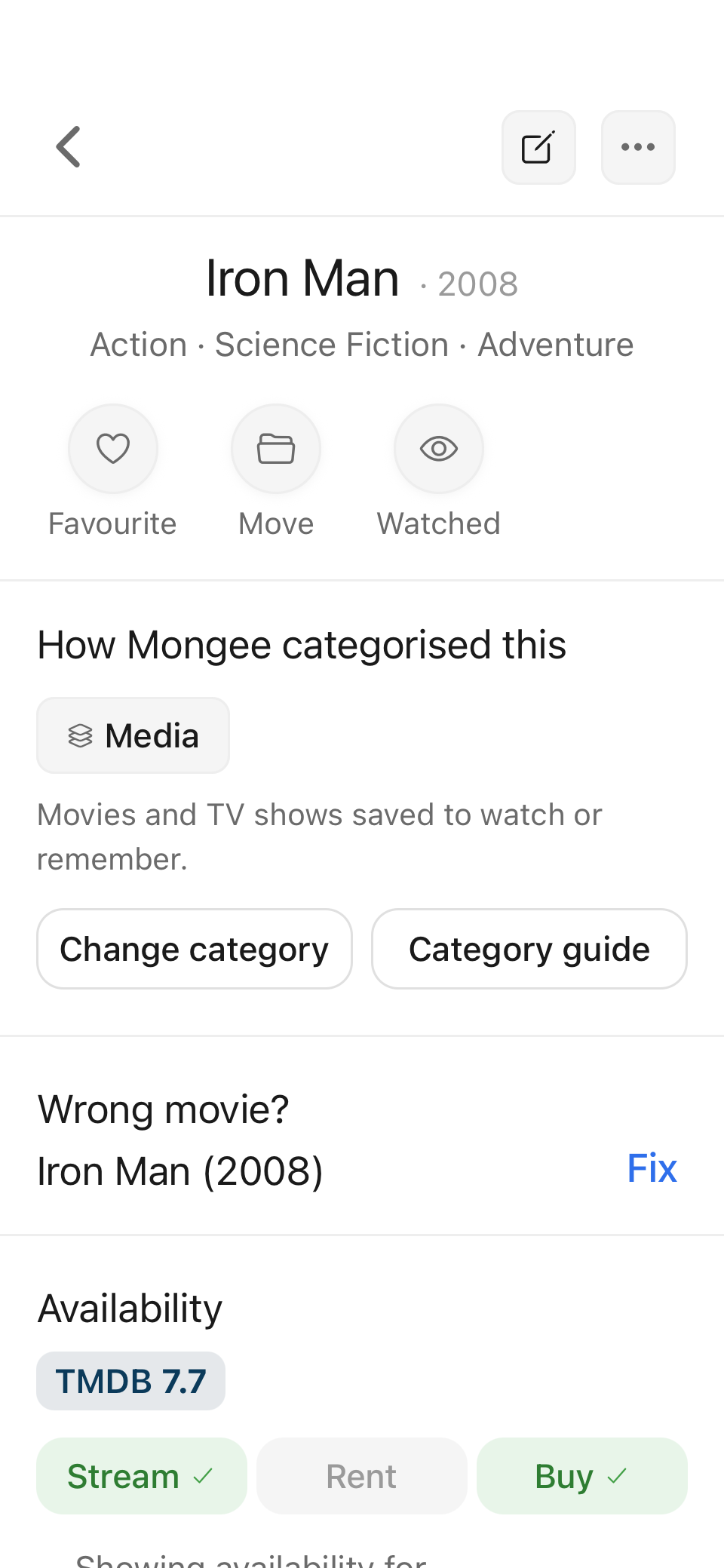
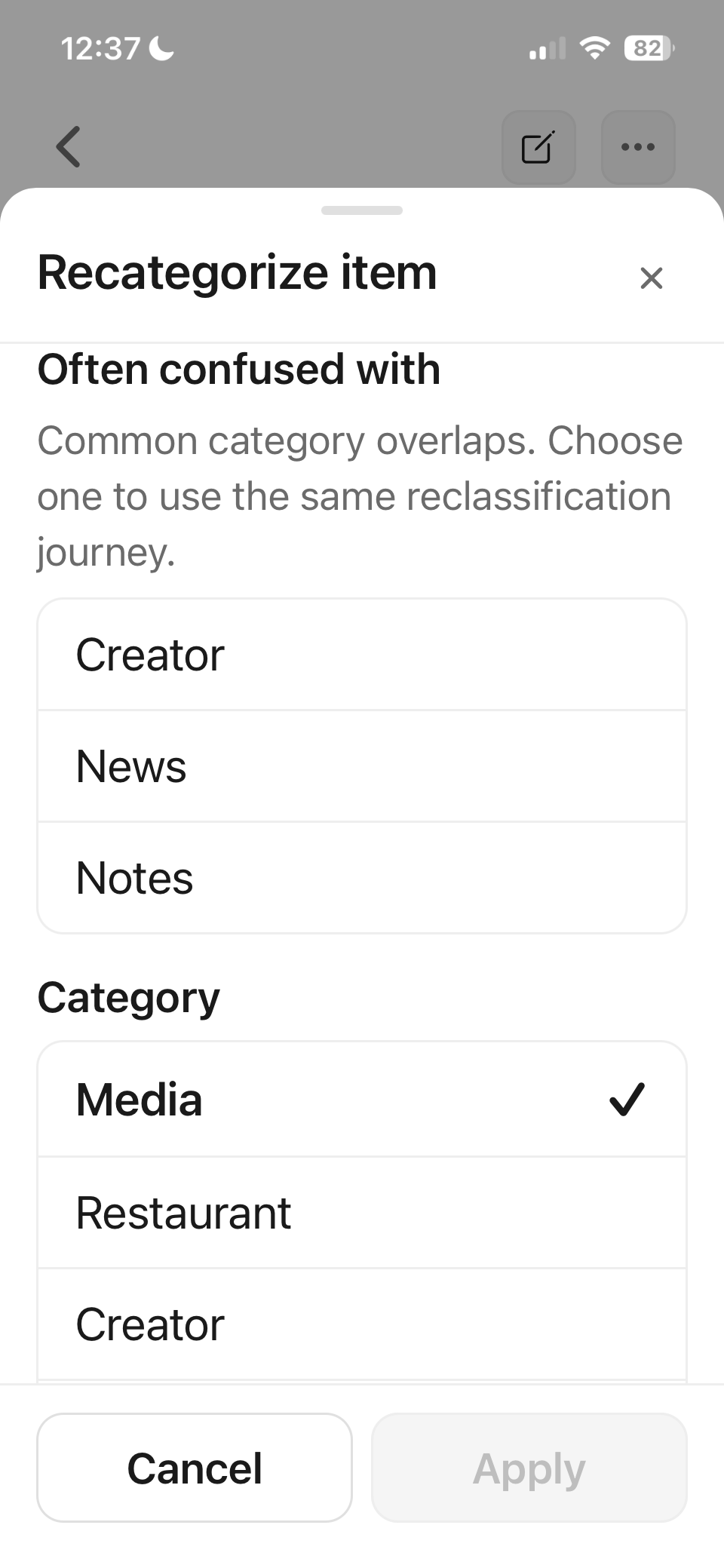
Tap Change category and choose the right one. Mongee recategorises the item and extracts the fields that matter for the new category.
Pricing
Free
$0
Try the core Mongee loop.
Standard
US$3.99/mo
For saving things regularly.
Premium
US$6.69/mo
More volume and fewer limits.
Prices are shown in US dollars as a reference. Your local App Store or Google Play price may vary by country, currency and taxes.